



Validation rules in Zoho CRM help prevent bad data from ever making it into a record — things like a social security number that is not nine characters long, or an IBAN that does not match the expected format. Zoho has rolled out several new configuration options that make these rules considerably more flexible, without giving up any of the protection they were built to provide.
Why Validation Rules Needed More Flexibility
Validation rules are used to alert users to mistakes and stop incorrect data from being submitted — but until recently, they all behaved the same rigid way: check everything on save, block the save if anything failed, and show every error at once. That worked, but it did not always match how teams actually wanted to use validation in practice. The new options below give admins much finer control over when and how validation happens.
Quickly Validate Individual Fields
Previously, fields were only validated when a user clicked the save button. To validate as they filled out a form, users had to fill in every mandatory field and then click save — and every click triggered all validation rules at once, surfacing error messages throughout the entire form.
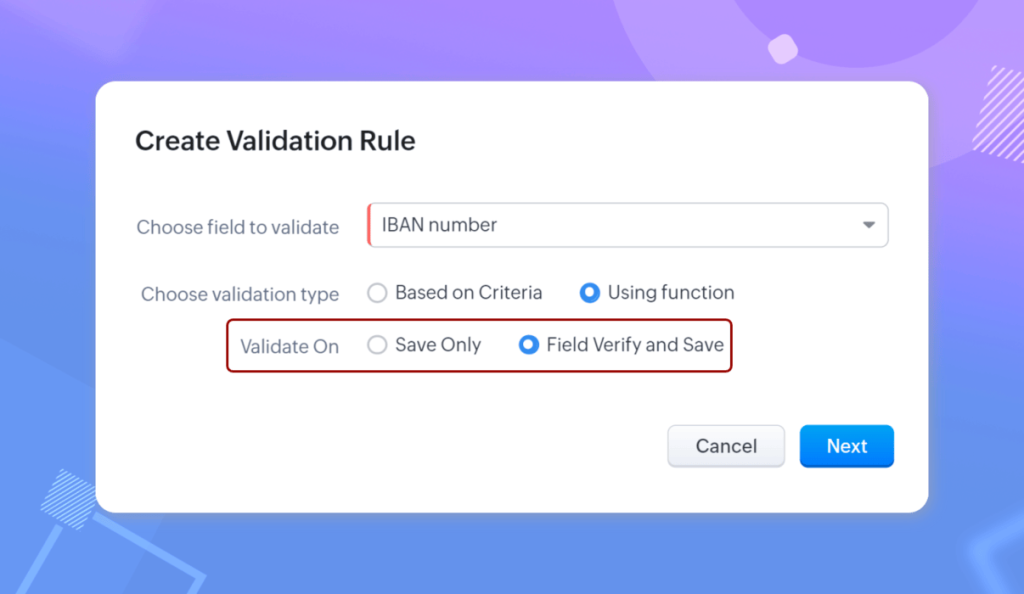
Now there is a new option: Field verify and save. When a user needs to quickly confirm that one important field is correct before moving on, they can select this option for that field. Validation then happens both when the user clicks the "Verify" button next to that specific field, and again when the record is saved — so a single field can be checked in isolation, without triggering every other rule on the page. This works for both criteria-based validation rules and rules built with functions.
Note: Field verify and save is not available on Canvas pages, on convert or mass-convert pages, in the stage-closed popup that appears when a deal is closed, in the details-required popup used for quick edits, or in lookup field popups.
Allow the Record to Be Saved With an Alert
Consider a company policy that prohibits discounts above 15%, while also discouraging — but not strictly banning — discounts above 10%. Previously, a validation rule had no clean way to express that difference: it could either block the save entirely or allow it with no warning at all.
Now, each condition in a validation rule can be set to one of two preferences: Stop with error, which prevents the record from being saved, or Allow by alert, which lets the record be saved but only after the user confirms they understand the policy. Stop with error remains useful for completely blocking clearly invalid data, while Allow by alert is ideal for flagging values that are technically permitted but worth a second look before they are confirmed. This preference can be set independently for each condition, and Allow by alert applies to criteria-based validation rules that run on save.
Decide Where Error Messages Are Displayed
Admins can now also choose where an error message appears for a given condition. When a field's value does not depend on any other field, showing the error right next to that field — the On primary field option — makes it easy for users to spot and correct the mistake immediately. This was previously the only behavior available.
In more complex, data-heavy forms where validation depends on the interplay between several fields, it can be more useful to group all the errors in one place instead. The new Top of page option consolidates those messages so users can resolve everything at once rather than hunting across the form. Like the save preference, error location can be set per condition, and is available wherever the validation preference is set to Stop with error.
What This Means for Your Team
Together, these three options let admins design validation rules that match how a team actually works — validating a single critical field on demand, nudging reps about borderline values instead of blocking them outright, and choosing the error layout that best fits a given form. The result is data quality enforcement that feels like a helpful guardrail rather than friction.
Need help configuring validation rules in your own Zoho CRM? Reach out to the Go Biz IT team for a free consultation.